
Table of Contents ×
- 1 What Makes a Training Video Accessible?
- 2 How Do Captions and Transcripts Improve Training Video Accessibility?
- 3 When Should You Use Audio Description in Training Videos?
- 4 How Can Visual Design Make Training Videos More Accessible?
- 5 Conclusion: Make Training Videos More Accessible From the Start
- 6 FAQs About Training Videos Accessibility
When I think about effective training videos, I look beyond the quality of the animation or how well the script explains a concept.
I also consider whether the content is accessible to people with different abilities and needs.
According to the CDC, 28.7% of U.S. adults have a disability. It’s a good reminder that not everyone takes in information the same way, so training videos need to work for different needs.
That’s where three elements matter most: captions, audio description, and accessible visual design.
I recommend considering accessibility from the beginning of production, not just during the final edit.
Decisions made during scripting and storyboarding can determine whether employees can follow the instructions, understand the visuals, and apply what they’ve learned.
Getting these details right helps businesses create training videos that work for more people.
What Makes a Training Video Accessible?
An accessible training video presents information in ways that people with different abilities can understand and use. In a workplace setting, that means employees shouldn’t have to overcome unnecessary barriers to complete their training.
For example, employees who are deaf or hard of hearing may rely on captions to follow a demonstration.
Employees who are blind or have low vision may need audio descriptions of important visual actions.
People with cognitive disabilities or learning differences may benefit from clear narration, straightforward language, and visuals that break complex processes into manageable steps.
In my view, accessibility means understanding what your audience needs and creating diversity and inclusion training videos.
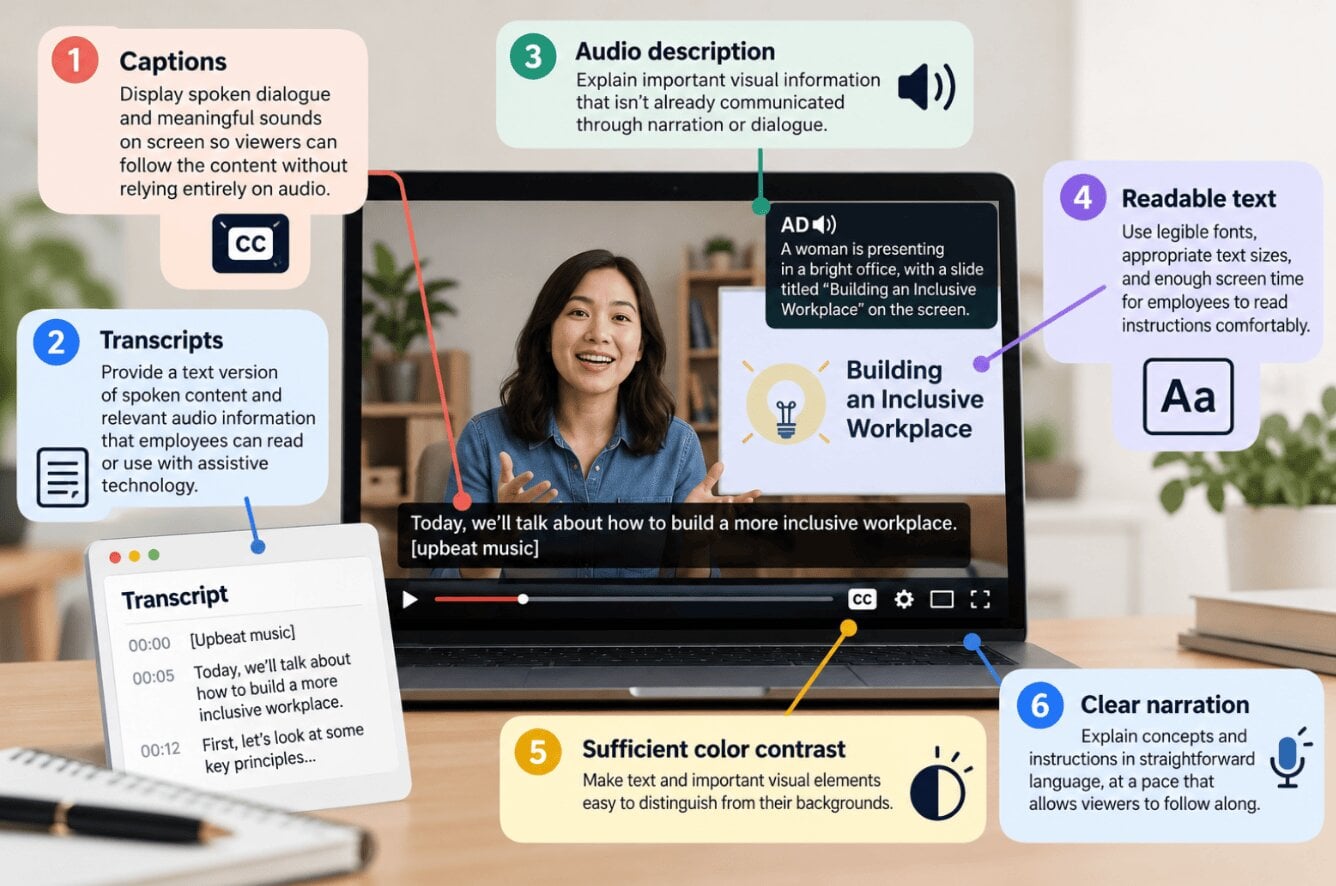
Here are the key elements I would consider when planning an accessible training video:
There’s one more detail that’s easy to overlook: accessibility doesn’t stop at the video itself.
The platform hosting the training matters, too. Employees should be able to operate playback controls, navigate the content, and use compatible assistive technologies where needed.
That’s why I recommend treating accessibility as part of the entire training experience, from the script and visual design to the final video player.
How Do Captions and Transcripts Improve Training Video Accessibility?
Captions and transcripts make training videos more accessible by giving employees alternative ways to access spoken information. Captions appear on screen as a video plays, while transcripts provide the video’s audio content in a separate text format.
Someone might need captions because they’re deaf or hard of hearing.
Another employee might watch a video in a shared office where turning on the sound isn’t practical.
Providing accurate captions helps both audiences follow the lesson without relying entirely on audio.
Here are a few things to consider when adding captions and transcripts to your training videos.
- Include dialogue and meaningful sounds. Captions should cover spoken words as well as relevant non-speech sounds, such as an alarm during a safety demonstration or a machine stopping unexpectedly. These audio cues can be essential to understanding a procedure.
- Keep captions synchronized. Captions should appear when the corresponding dialogue or sound occurs. Delayed captions can make it difficult for viewers to follow instructions, especially when a trainer demonstrates several steps in quick succession.
- Make captions easy to read. Use clear text, sensible line breaks, and enough display time for viewers to read comfortably. Captions shouldn’t obscure important on-screen instructions or visual demonstrations.
- Identify speakers when necessary. If multiple people speak in a training video, speaker labels help viewers understand who is talking. This is particularly useful for role-play scenarios and workplace communication training.
- Review automatically generated captions. Speech recognition tools can save editing time, but they may misinterpret technical terms, company names, acronyms, or words spoken with different accents. I recommend reviewing and correcting captions before publishing, particularly when a mistake could change the meaning of a safety instruction.
Transcripts offer another useful way to access training content. Employees can read the material at their own pace, search for specific terms, or revisit instructions without replaying the entire video.
A well-prepared transcript should include the relevant spoken content and meaningful audio information rather than just a brief summary.
One important distinction: captions and transcripts aren’t interchangeable with audio description.
Captions communicate audio information through text, while audio description makes essential visual information available through narration.
Depending on the video’s content and audience, you may need all three.
When Should You Use Audio Description in Training Videos?
Audio description is useful when a training video communicates important information visually that viewers cannot fully understand from the existing audio alone. It adds narration describing essential actions, changes, or visual details, helping blind and low-vision employees follow the lesson.
I recommend assessing each scene to determine whether the visuals convey information that isn’t already explained in the dialogue.
The goal is to communicate what’s necessary to understand the lesson without overwhelming the viewer with narration.
Audio description can be particularly valuable in these situations:
- Step-by-step demonstrations: Describe important physical actions, such as opening a safety guard, positioning a component, or pressing a specific control.
- On-screen instructions: Read out essential text, warnings, or labels that aren’t already communicated through narration.
- Charts and diagrams: Explain relevant trends, relationships, or comparisons.
- Animated training videos: Describe meaningful character actions, object movements, or changes in a visual sequence.
- Safety scenarios: Explain important visual cues, such as a hazard appearing in a work area or a warning indicator activating.
The best time to plan audio description is during scripting and storyboarding.
At this stage, the production team can identify which visual details need narration and decide where descriptions can fit naturally.
If you wait until editing, you may find that the dialogue leaves little room for additional information.

How Can Visual Design Make Training Videos More Accessible?
Visual design makes training videos more accessible by helping viewers read, interpret, and follow information without unnecessary effort. I recommend focusing on readability, clear visual cues, consistent layouts, and a pace that gives employees enough time to understand each step.
This matters because a training video can have an accurate script and clear narration but still be difficult to follow if the text is too small, the colors blend together, or the animation moves too quickly.
Here are six visual design principles I would consider when creating accessible training videos.
1. Use Sufficient Color Contrast
Make sure text, icons, and important graphics stand out against their backgrounds.
Low contrast can make information difficult to read, especially for people with low vision or color vision deficiencies.
I recommend pairing colors with labels, symbols, or other visual cues rather than relying on color alone.
If red indicates a hazard, for instance, add a clear warning label or hazard symbol so viewers don’t have to distinguish the color to understand the message.
Consider finding inspiration for effective training videos before deciding your visual design.
2. Choose Readable Typography
Typography affects how easily viewers can absorb information on screen. Use clear fonts, appropriate text sizes, and consistent formatting throughout the video.
Avoid decorative typefaces for important instructions, and pay attention to how text appears on smaller screens.
It’s also helpful to establish a clear visual hierarchy.
Use distinct styles for headings, supporting explanations, and key instructions so viewers can quickly identify the information that matters most.
3. Keep On-Screen Text Concise
Training videos often need to explain procedures, policies, and technical concepts, but displaying too much text at once can overwhelm viewers.
Break the information into short, meaningful statements.
Don’t rush through these screens, either.
Allow enough time for viewers to finish reading before introducing the next instruction, especially when the content includes unfamiliar terminology or detailed steps.
4. Use Clear Visual Communication
Icons, labels, diagrams, and demonstrations can help explain concepts that are difficult to communicate through narration alone.
When introducing an unfamiliar symbol, pair it with a descriptive label.
You can also use arrows, highlights, or close-up shots to direct attention to important details.
These visual cues are particularly useful in equipment demonstrations and software tutorials, where viewers need to know exactly which component or interface element to focus on.
5. Avoid Distracting Motion and Transitions
Rapid transitions, decorative effects, and constantly moving elements can make it harder for viewers to concentrate on instructions.
Flashing content deserves particular care because certain flashing patterns can trigger seizures in susceptible viewers.
Think about pacing, too. When demonstrating a sequence of actions, let each important movement finish before introducing another one.
This gives viewers time to process what happened and understand how it relates to the next step.
Learn more about training video types you can use here: 10 Employee Training Video Types and When to Use Them
6. Break Complex Information Into Manageable Steps
Breaking complex information into smaller, logical steps helps viewers focus on one task at a time instead of trying to absorb everything at once.
For example, a safety training animation could demonstrate how to inspect equipment, identify a potential hazard, and follow the correct procedure in three separate stages.
Each stage can include a short explanation, a focused visual demonstration, and a clear transition to the next task.
Keep the sequence consistent so viewers can follow the process without guessing what comes next.
For longer procedures, brief recaps or numbered steps can also help reinforce the order of operations and make the video easier to revisit later.
Conclusion: Make Training Videos More Accessible From the Start
Accessible training videos help more employees learn by presenting information in ways they can access and understand.
Captions communicate spoken content, audio description explains essential visual details, and accessible visual design makes instructions easier to read and follow.
I recommend building accessibility into every stage of production, from scripting and storyboarding to animation and editing.
Reviewing your existing training videos is also a useful starting point.
Check whether captions are accurate, important visual information is explained, and text and animations are easy to follow.
At Breadnbeyond, we create animated videos that help businesses explain complex information through clear storytelling and engaging visuals.
If you’re planning a new training video or improving an existing one, we can help create training content that’s both engaging and accessible.
FAQs About Training Videos Accessibility
What Is an Accessible Training Video?
An accessible training video presents information in ways that people with different abilities can understand and use. Depending on its content and audience, it may include captions, transcripts, audio description, readable text, sufficient color contrast, and clear narration. Accessibility also depends on whether the video player works with relevant assistive technologies.
What Is the Difference Between Captions and Subtitles?
Captions typically include spoken dialogue and meaningful non-speech sounds, making video content accessible to viewers who are deaf or hard of hearing. Subtitles generally focus on spoken dialogue and often translate it into another language.
Are Transcripts Enough to Make a Training Video Accessible?
Not always. Transcripts provide a text alternative to spoken content, but they don’t replace synchronized captions for viewers who need text displayed alongside the video. They also don’t automatically communicate essential visual information.
What Is Audio Description in a Training Video?
Audio description is narration that communicates important visual information that isn’t already explained through the video’s existing audio. It can describe actions, on-screen text, diagrams, or changes in a demonstration that are necessary to understand the lesson.
What Accessibility Standards Apply to Training Videos?
The applicable requirements depend on your organization, location, and whether the training is used in a public, educational, or workplace setting. The Web Content Accessibility Guidelines (WCAG) provide widely used guidance for accessible digital content, including prerecorded video.